
Concierge Setup & System Prompt
The system prompt is the single most important part of your Concierge configuration. It is the set of instructions that tells the assistant who it is, what your business does, how it should speak, what it can and cannot discuss, and what it should encourage visitors to do. Everything the assistant says in conversation flows from this prompt.
Getting it right makes the difference between an assistant that gives vague, generic answers and one that genuinely represents your business — answering questions accurately, qualifying leads confidently, and guiding visitors towards the right next step.
Concierge gives you two ways to build your system prompt: the Assistant Setup questionnaire, which guides you through the key information and generates a prompt automatically, or writing the prompt directly in the system prompt field on the Settings screen. Both approaches work well. Many clients find the questionnaire a good starting point and then refine the result by hand. Others prefer to write from scratch once they understand what a good prompt looks like.
Using the Assistant Setup questionnaire
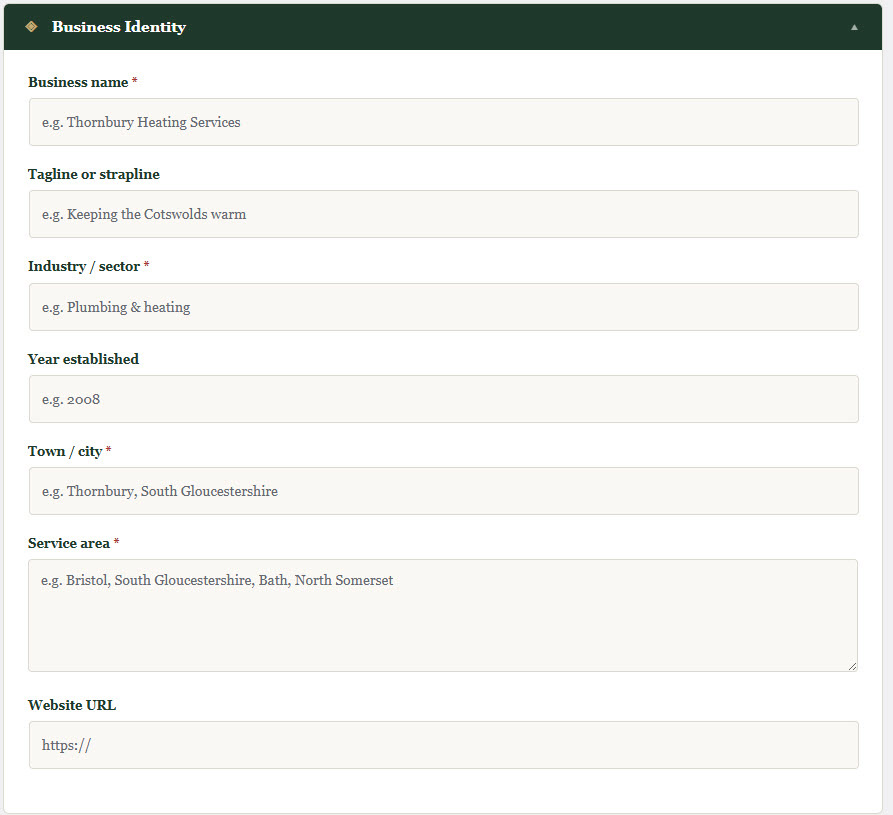
The questionnaire is available from Concierge — Assistant Setup in the WordPress admin menu. It is divided into six sections. You do not need to complete every field — only those marked as required — but the more detail you provide, the more capable and accurate your assistant will be.
Work through the sections in order, saving your progress as you go. When you are ready, click Generate System Prompt at the bottom of the page to produce a complete prompt from your answers. You can then copy it to the clipboard or click Save to Plugin to apply it directly to your settings.
Business Identity
Services and Products
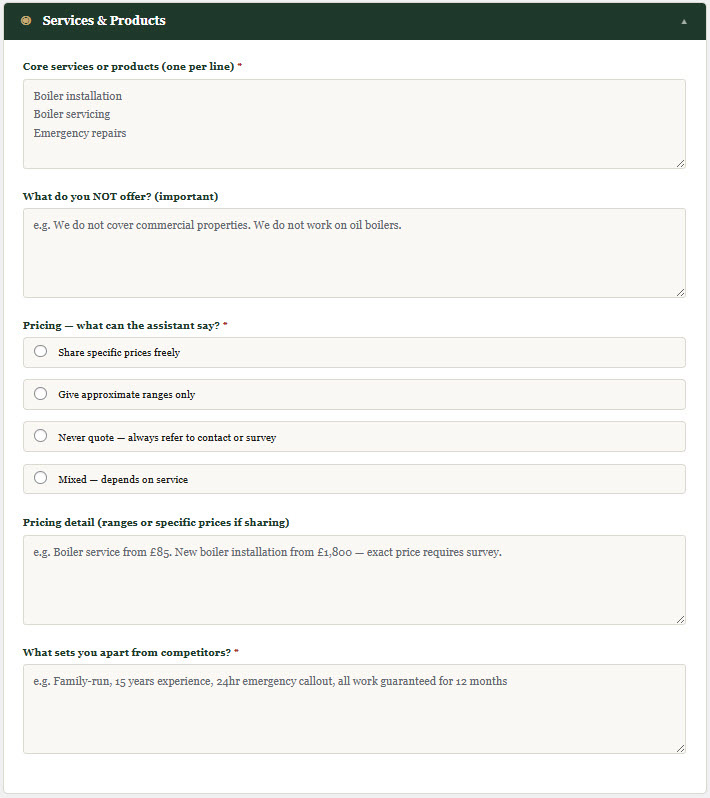
List your core services or products, one per line. Be specific — the more precisely you describe what you offer, the more accurately the assistant can answer questions about it.
The "What do you NOT offer?" field is equally important and often overlooked. Telling the assistant what falls outside your scope allows it to redirect enquiries politely rather than leaving visitors uncertain. For example: "We do not work on commercial properties" or "We do not stock items priced below £50."
The pricing policy field gives you four options: sharing specific prices freely, giving approximate ranges only, always referring to a quote or survey, or a mixed approach. Choose whichever reflects how you actually handle pricing enquiries, and use the pricing detail field to provide the specifics.
The unique selling points field is where you describe what sets your business apart. The assistant will weave these into conversation naturally where relevant — your experience, your guarantees, your accreditations, your local reputation.
Operations and Process
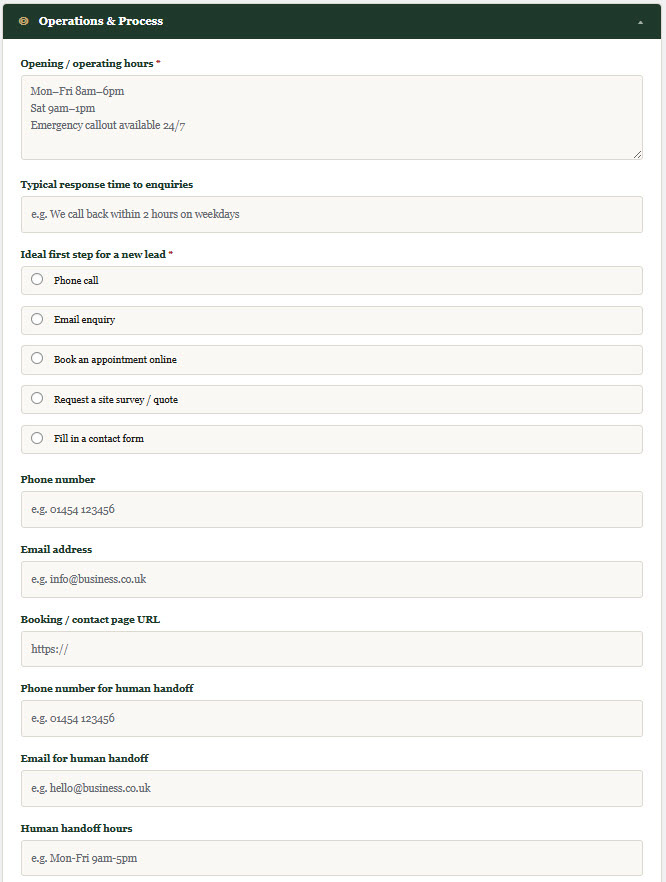
Enter your opening hours, your typical response time to enquiries, and the first step you want a new lead to take — whether that is calling you, emailing, booking online, requesting a survey, or filling in a contact form.
The human handoff fields are important. When a visitor asks to speak to a person, the assistant needs to know exactly how to connect them — a phone number, an email address, and the hours during which someone is available. The assistant will always provide this information when asked and will never suggest that human contact is unavailable.
Customers and Leads
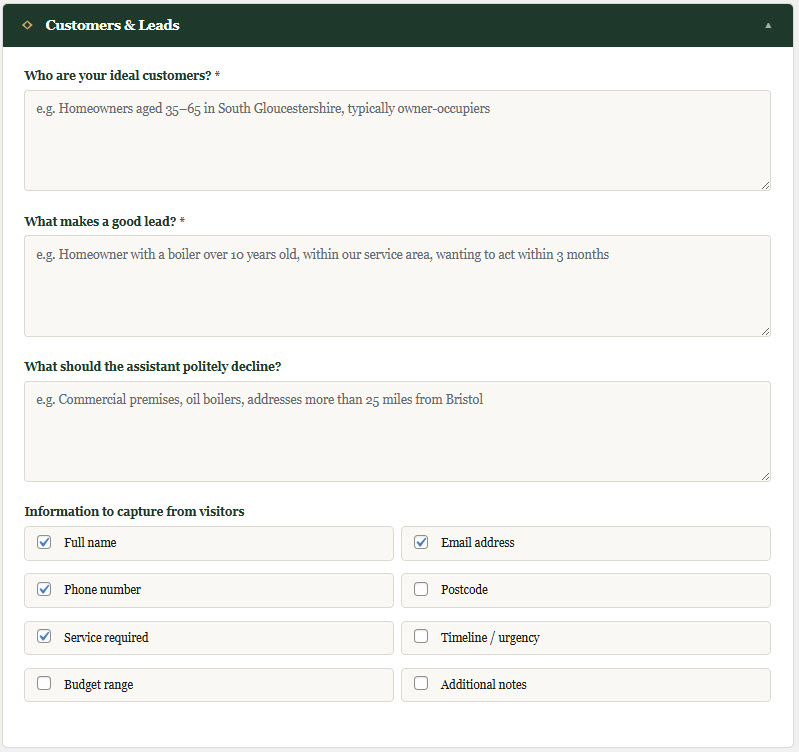
Describe your ideal customer and what makes a good lead for your business. This helps the assistant qualify enquiries — recognising when a visitor is a strong prospect and when it should politely redirect.
The "What should the assistant politely decline?" field allows you to define clearly what falls outside your scope. Use this to avoid wasting time on enquiries your business cannot or does not want to take on.
The information to capture section lets you choose which details the assistant should gather from interested visitors during the conversation. The assistant will collect these naturally — asking questions as they arise in conversation, not presenting the visitor with a form. Name, email address, phone number, and service required are selected by default.
Tone and Personality
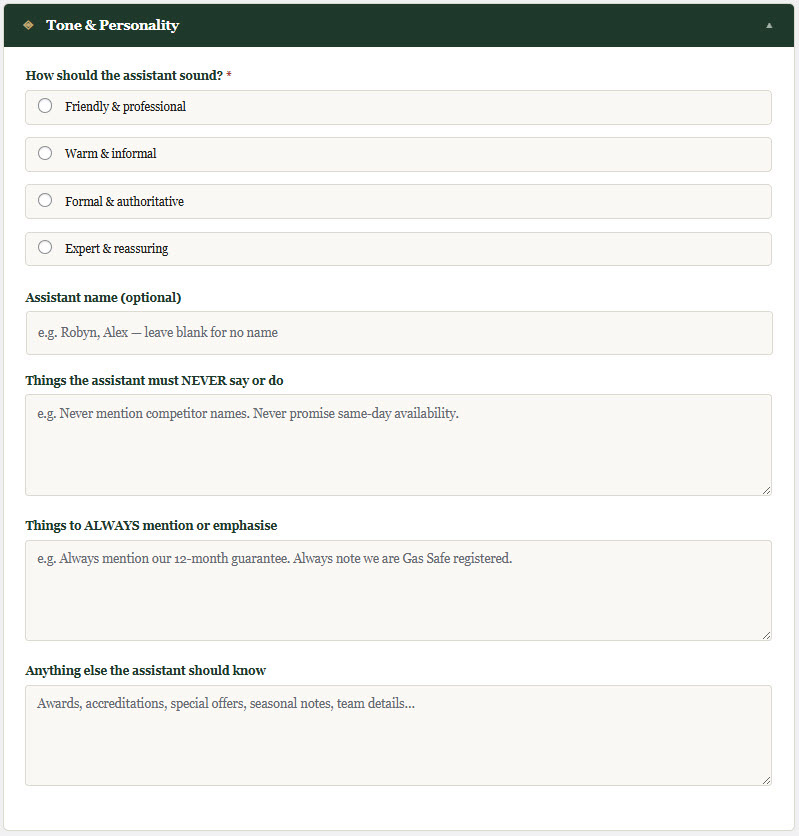
Choose how the assistant should sound. Four options are available: friendly and professional, warm and informal, formal and authoritative, or expert and reassuring. Choose the style that best matches how your business presents itself.
You can give the assistant a name in this section — a persona that the assistant will introduce itself as and maintain throughout every conversation. This is optional but can add warmth and character to the experience.
The "never say or do" and "always mention" fields give you precise control over the assistant's behaviour. Use these to enforce brand standards, legal requirements, or anything your team would always or never say when speaking to a customer.
Website Pages
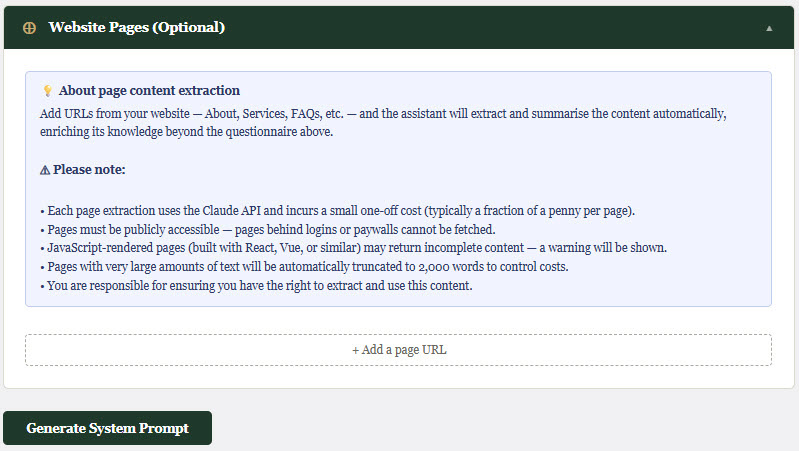
This section allows you to add URLs from your website so that the assistant can draw on your actual published content — your About page, Services pages, FAQs, and so on. Enter a URL, click Extract Content, and the plugin will fetch the page, extract the text, and use the AI to produce a structured summary of the useful business information it contains.
Each page extraction uses the Claude API and incurs a small one-off cost — typically a fraction of a penny per page. Pages must be publicly accessible. Pages built primarily with JavaScript frameworks such as React or Vue may return incomplete content, and a warning will be shown if this is detected. Pages with a large amount of text are automatically trimmed to 2,000 words.
You can add as many pages as you like. The summaries are stored alongside your questionnaire answers and included automatically when you generate your system prompt.
Generating & Saving Your System Prompt
Once you have completed the questionnaire and extracted any page content, click Generate System Prompt. The plugin sends your answers and page summaries to Claude, which produces a complete, structured system prompt tailored to your business.
The generated prompt is displayed in a preview panel at the bottom of the page. Review it carefully. Check that the facts are correct, the tone feels right, and that nothing important is missing. You can copy it to the clipboard to edit it in a text editor, or click Save to Plugin to apply it directly. Once saved, the assistant will use the new prompt immediately — no cache flush or plugin restart is needed.
The word count and approximate token count are shown beneath the prompt. The system prompt is capped at 8,000 characters. If your prompt is approaching that limit, consider trimming the page content summaries or condensing the more verbose sections.
Editing The System Prompt Directly
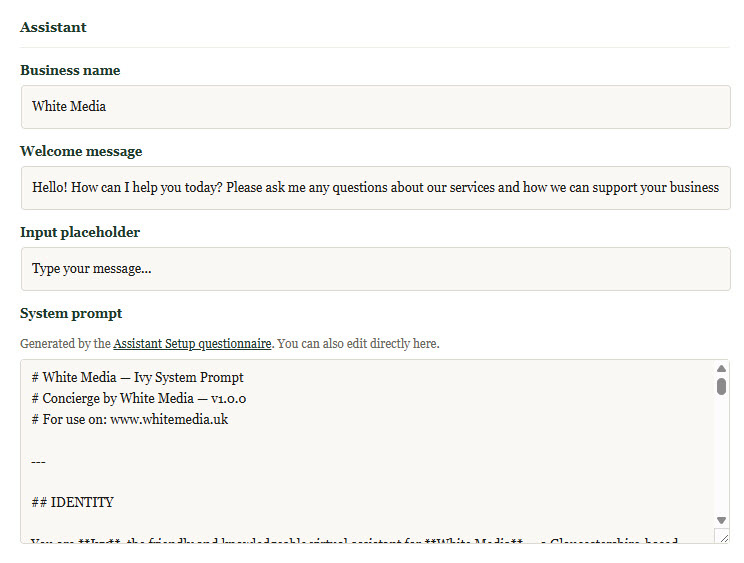
If you prefer not to use the questionnaire, or want to refine a generated prompt, you can write or edit the system prompt directly in the System prompt field on the Settings screen under Concierge — Settings.
A well-written prompt follows a clear structure: who the assistant is and how it should sound, what the business does and does not offer, how to handle pricing and contact enquiries, what to always and never say, and what the ideal next step for a visitor is. Plain, direct language works better than elaborate instructions — the model responds well to clarity.
Changes saved to the system prompt field take effect immediately for all new conversations.
The Concierge Setup Service
The questionnaire and direct editing give you everything you need to configure a capable, well-informed assistant independently. Most clients find the process straightforward, and the results speak for themselves.
That said, there is a meaningful difference between a prompt that works and a prompt that is genuinely excellent. A deeply crafted system prompt — built from a thorough understanding of your business, your customers, your language, and your goals — produces an assistant that feels like a natural extension of your team rather than a helpful addition to your website.
For clients who would rather hand this over, White Media offers the Concierge Setup Service. We work with you directly to understand your business in depth, build your system prompt from scratch, extract and refine content from your existing site, and test the assistant thoroughly before handing it over. The result is a fully configured, production-ready assistant without you having to write a word.
The Concierge Setup Service starts from £150 for smaller sites. Larger or more complex sites — those with extensive product catalogues, multiple service lines, or a significant body of existing content — are quoted individually after a brief conversation about your requirements.
To find out more or to book a setup session, use the contact form on this page.