
Concierge Lead Routing
When a visitor submits their contact details through the Concierge widget, those details are captured as a lead. Concierge gives you full control over where that lead goes next — stored in WordPress, sent by email, pushed to a CRM, or routed through a Cornerstone form.
All lead routing is configured from Concierge — Integration in the WordPress admin menu.
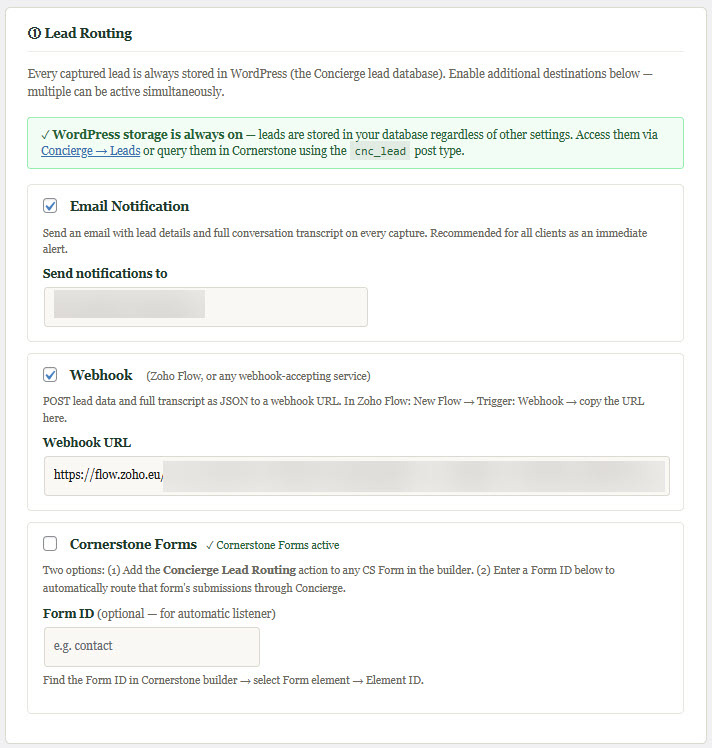
WordPress Storage - Always On
Every lead captured by Concierge is always stored in your WordPress database, regardless of any other settings. This is a silent safety net — if an email notification fails to deliver or a webhook times out, the lead is never lost.
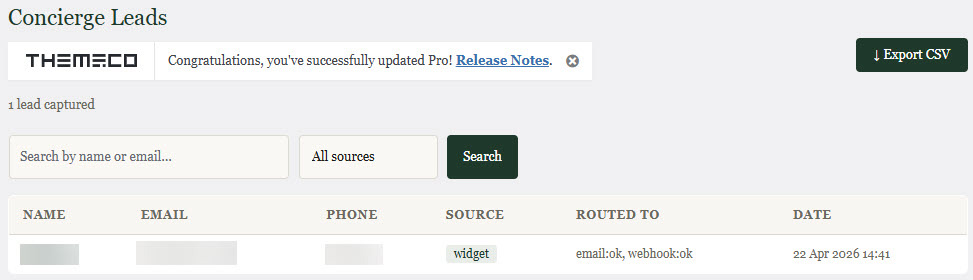
Leads are stored as a custom post type called cnc_lead and are accessible from Concierge > Leads in the admin menu. They can also be queried in Cornerstone using Loopers and Dynamic Content. See the Cornerstone Integration page for details on working with lead data in the page builder.
Email Notification
Enable the Email Notification option to receive an email whenever a lead is captured. The email includes the visitor's name, email address, phone number if provided, the page they were on when they started the conversation, the time and date of capture, and the full conversation transcript.
Enter the address you want notifications sent to in the Send notifications to field. This defaults to your WordPress admin email address but can be any valid email address — your main inbox, a shared team address, or a dedicated leads address.
Email notification is recommended for all clients as a simple, immediate alert that requires no additional tools or accounts.
Webhook
The webhook option sends the full lead payload — name, email, phone, page, transcript, and metadata — as a JSON POST request to any URL that accepts webhooks. This is the recommended route for connecting Concierge to a CRM or marketing platform.
Enable the Webhook option and enter your webhook URL in the field provided. Multiple webhook destinations are not supported natively, but most webhook platforms can forward to additional destinations from their own configuration.
Connecting To Zoho Flow
Zoho Flow is a workflow automation platform that connects Concierge to Zoho CRM, Zoho Books, and hundreds of other applications. To set up a connection, log in to your Zoho Flow account (flow.zoho.eu for European accounts), create a new flow, and choose Webhook as the trigger. Zoho Flow will provide a webhook URL — copy this and paste it into the Webhook URL field in Concierge Integration settings.
In your Zoho Flow workflow, the lead data arrives as webhook payload fields. The available fields are: name, email, phone, site, business, page, transcript, source, captured_at, and lead_id. Use these to map data into your CRM records, send follow-up emails, or trigger any other actions your workflow requires.
Cornerstone Forms
If Cornerstone Forms is active on your site, Concierge registers a native form action called Concierge Lead Routing. This action can be added to any Cornerstone form in the builder, alongside standard actions such as email and database storage. When a visitor submits the form, their details are routed through Concierge's lead routing layer — stored in WordPress and forwarded to any other active destinations.
This option is useful when you want leads from a conventional contact form and leads from the chat widget to arrive in the same place and be managed through the same workflow.
There is also a form listener option. If you enter a Form ID in the Integration settings, Concierge will automatically capture submissions from that specific form even without the action being attached in the builder. Find the Form ID by selecting the form element in the Cornerstone builder and checking the Element ID field.
If Cornerstone Forms is not active on your site, this option will be shown as unavailable in the Integration settings.
Advanced - Showing Leads In The Admin Menu
By default, the cnc_lead post type is hidden from the standard WordPress admin menu. Leads are accessible through Concierge — Leads, and the post type is fully available to Cornerstone's Loopers and Dynamic Content regardless of this setting.
If you need the post type to appear in the standard WordPress admin menu — for example, to attach ACF Pro field groups or other plugin integrations to it — enable the Show Concierge Leads in WordPress admin menu option in the Advanced section of the Integration settings. This is not required for Cornerstone development and is off by default.