
Viewing & Managing Concierge Leads
The Leads Screen
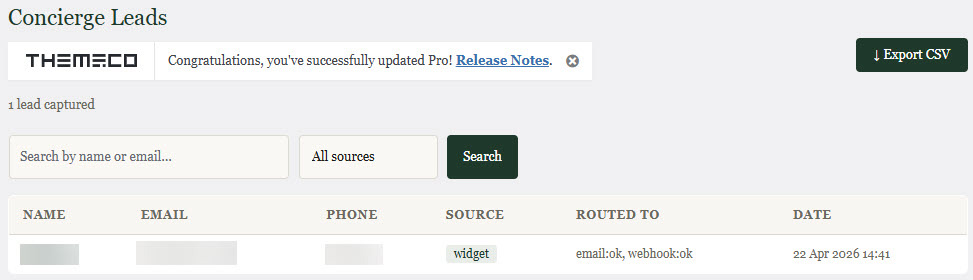
The Leads screen displays all captured leads in reverse chronological order, with the most recent at the top. For each lead you can see the visitor's name, email address, phone number if provided, the source of the lead, where it was routed, and the date and time of capture.
The total number of leads captured is shown beneath the page heading.
Searching & Filtering
Use the search field at the top of the Leads screen to find leads by name or email address. The source filter allows you to narrow the list to leads from a specific origin: Widget (captured through the chat), CS Forms (action) (submitted through a Cornerstone form with the Concierge Lead Routing action attached), or CS Forms (listener) (submitted through a form matched by the form listener in Integration settings).
Click Search to apply your filters, or Clear to return to the full list.
Viewing A Lead In Detail
Click a lead's name to open the detail view. This shows the full contact record — name, email, phone, source, the page the visitor was on when they started the conversation, the routing log, and the date and time of capture.
Below the contact details, the full conversation transcript is displayed exactly as it occurred. This is a verbatim record of everything the visitor and the assistant said to each other during the session in which the lead was captured.
The routing log in the contact details shows which destinations the lead was sent to and whether each delivery succeeded. For example, a lead routed to email and a webhook would show something like email:ok, webhook:ok. If a delivery failed, the reason is noted alongside.
Exporting Leads To CSV
Click Export CSV at the top-right of the Leads screen to download all leads as a comma-separated values file. The export includes every field: date, name, email, phone, source, page, routing log, and the full conversation transcript for each lead.
The file is named concierge-leads- followed by the export date. It can be opened in Microsoft Excel, Google Sheets, or any spreadsheet application. All leads are exported regardless of any active search filters — the export always covers the full dataset.
Working With Leads In Cornerstone
Leads are stored as a WordPress custom post type with the identifier cnc_lead. This means they are natively available to Cornerstone's Looper system and can be used with Dynamic Content elements anywhere on your site — in a leads dashboard, a private client area, or any custom admin interface you build in Cornerstone.
To query leads in a Looper, set the post type to cnc_lead. No additional plugin or configuration is required.
The following lead fields are available as post meta and can be retrieved using Dynamic Content:
_cnc_name — the visitor's name
_cnc_email — the visitor's email address
_cnc_phone — the visitor's phone number
_cnc_transcript — the full conversation transcript
_cnc_source — the lead source (widget, cs_form, or cs_form_listener)
_cnc_page — the URL of the page the visitor was on when the conversation took place
_cnc_routed_to — the routing log for this lead
_cnc_routed_at — the date and time the lead was stored
By default, the cnc_lead post type is hidden from the standard WordPress admin navigation and is not publicly queryable on the front end. It is only accessible through Concierge — Leads, through Cornerstone's Looper and Dynamic Content tools, and through direct WP_Query calls in custom code. See the Lead Routing page for information on making the post type visible in the standard admin menu if needed for other plugins.